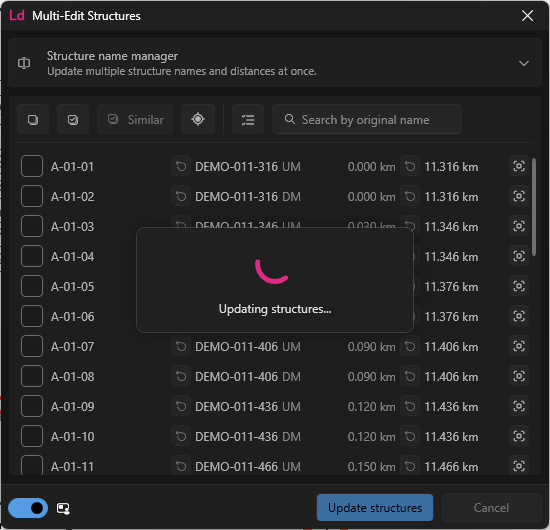
Lineardraft allows you to bulk-update the names and distances of many structures at once.
Step 1: Click the 'Multi-Edit' button in the 'Structures' section of the Lineardraft toolbar
This will open the 'Multi-Edit Structure' window.
Step 2: Click the drop-down menu and click 'Structure name manager'
Here you will see all structures with their associated name and distance.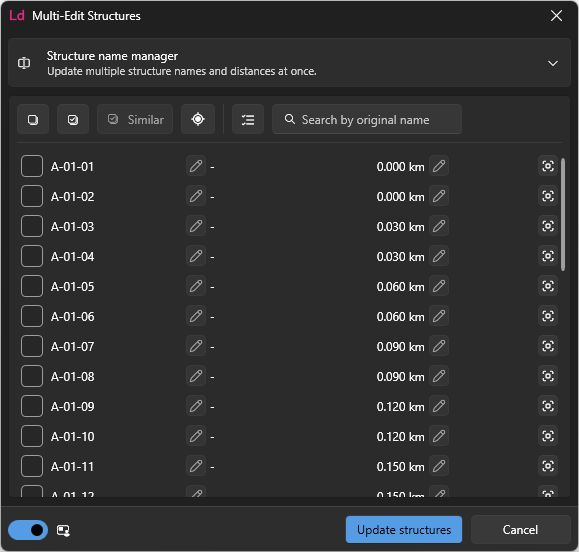
Step 3: Select the structures you wish to edit
To select structure(s), either click the checkbox next to the relevant structure name or click the Locate... button followed by the relevant structure.
You can also use the 'Similar' button to instantly select structures of the same type along the same tracks. For example, if you select an STC, when you click 'Similar' other STCs along the same track are checked.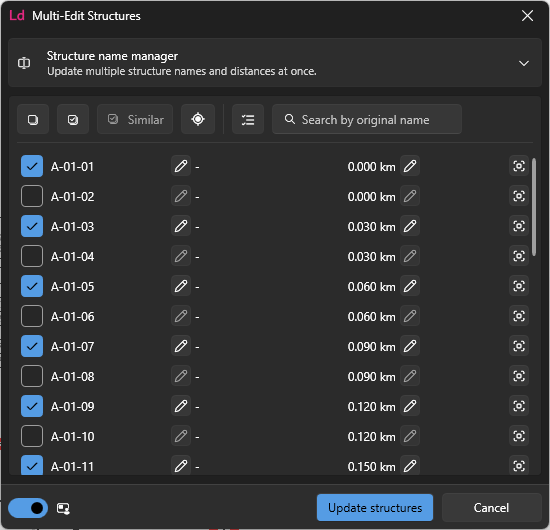
Step 4 (Optional): Editing structure distances
You can edit the distance of multiple structures at once by selecting a chainage line element in the file to measure each structure's position along it.
The distance for each structure is measured from the centre of the structure's tracks to the perpendicular point along the line element.
Step 4a: Click the pencil button next to the distance value
This will open a dialog allowing you to edit the distance of all selected structures at once by locating a chainage line.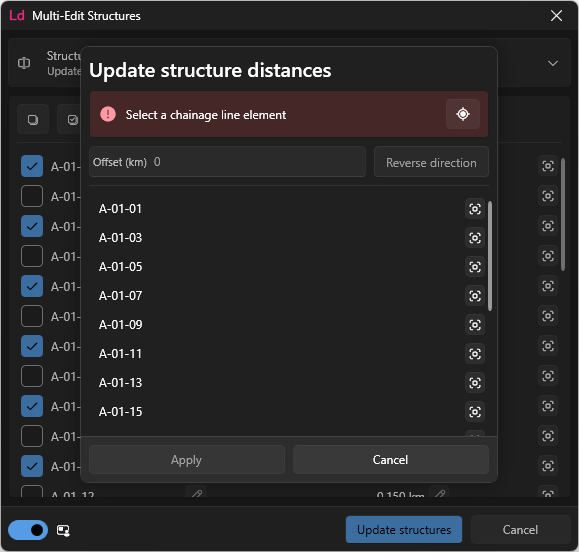
Step 4b: Click a chainage line in the design
Once selected, the distance value for each structure will be calculated.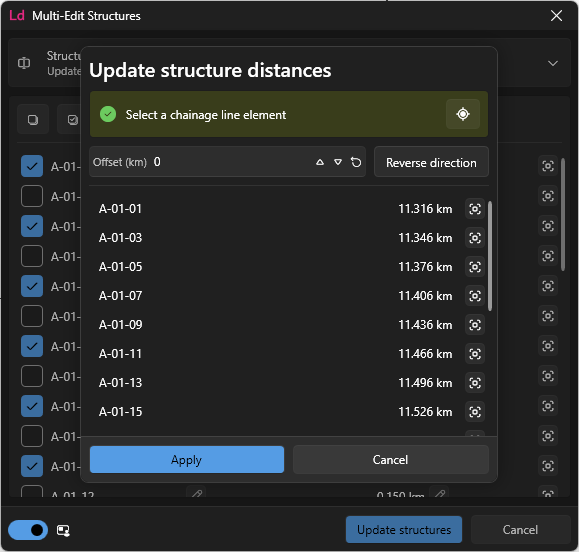
Step 4c (Optional): Update the offset
If the chainage line doesn't start at 0km, then an offset can be added to correct for the start of the line.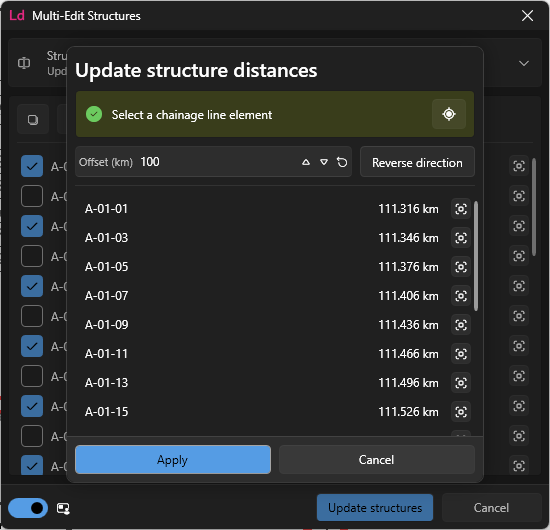
Step 4d (Optional): Reverse the direction of measurement.
The distances of the line might be measured from the incorrect end of the line, you can quickly recalculate the distances from the other end of the line by toggling this button.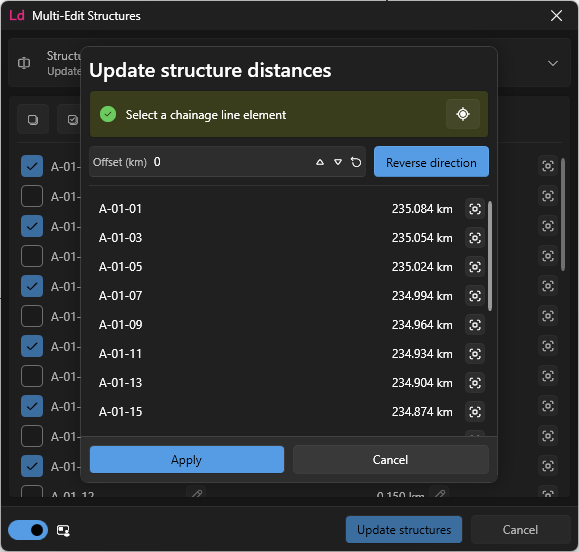
Step 4e: Click Apply
This will close the dialog and show the updated distances next to the selected structures.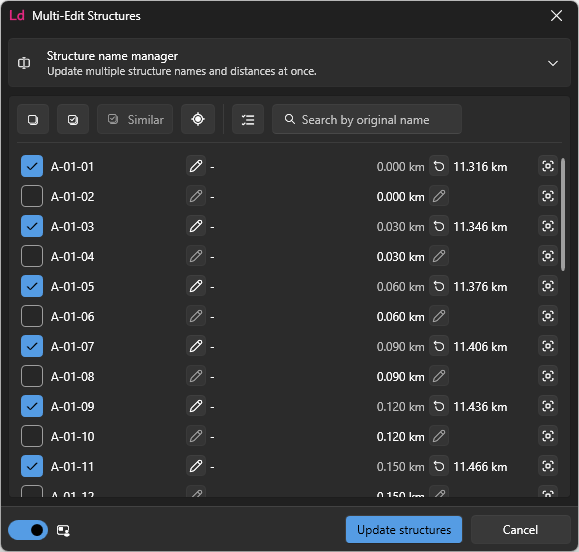
Step 5 (Optional): Editing structure names
You can edit the name of multiple structures at once, by providing custom text, or by using the structures' distance to dynamically generate a name.
Step 5a: Click the pencil button next to the structure name
This will open a dialog allowing you to edit the name of all selected structures at once.
You can edit each part of the name, and the structure's tag.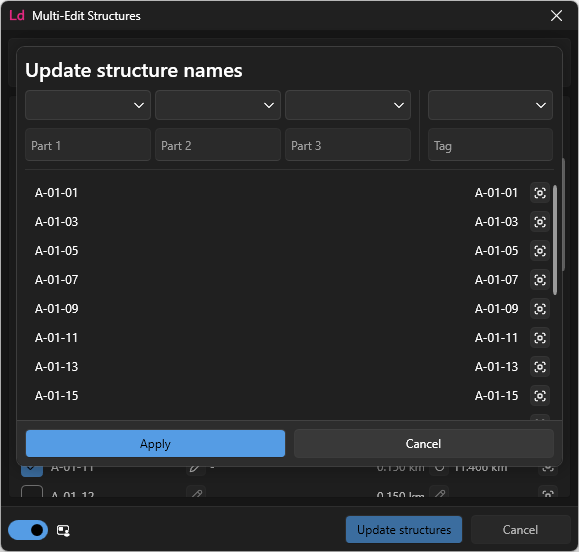
Step 5b: Choose a value for the structure parts or tag that you wish to change
The options are:
- Original (Pt 1) - Uses the original value from the first part of each selected structure's name.
- Original (Pt 2) - Uses the original value from the second part of each selected structure's name.
- Original (Pt 3) - Uses the original value from the third part of each selected structure's name.
- Original (Tag) - Uses the original value from each selected structure's tag.
- Distance - Uses the distance value from each selected structure with no formatting. E.g. "12.034"
- Distance (km) - Uses the whole part of each selected structure's distance formatted with leading zeros as defined in the active project settings (The default is 3 characters. e.g. "012")
- Distance (m) - Uses the decimal part of each selected structure's distance formatted with leading zeros as defined in the active project settings (The default is 3 characters. e.g. "034")
- Custom - Allows you to type a custom text value for that part which will be used for all selected structures.
You can leave a part or the tag empty and it will maintain its original value.
A preview of each selected structure's new name will show in the dialog's list.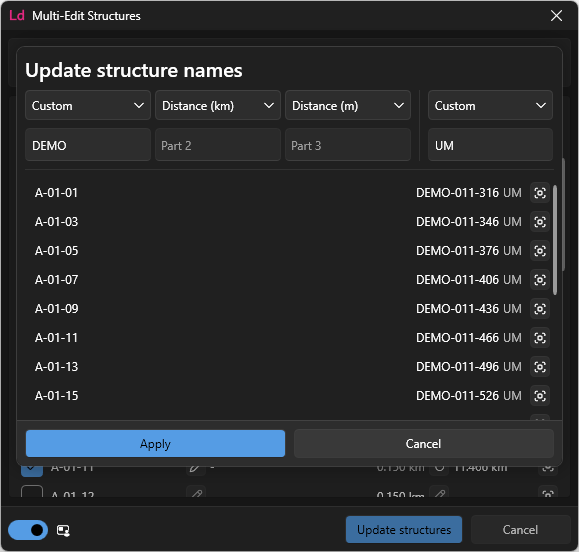
Step 5c: Click apply
This will close the dialog and show the updated names next to the selected structures.
N.b. If a new name uses a 'distance' option, updating structure distances while in this dialog will update the new name. However, once the new name has been applied (Step 7), the names are not automatically updated when changing a structure's distance using the standard 'Edit Structure' window or any other function (e.g. multi-move).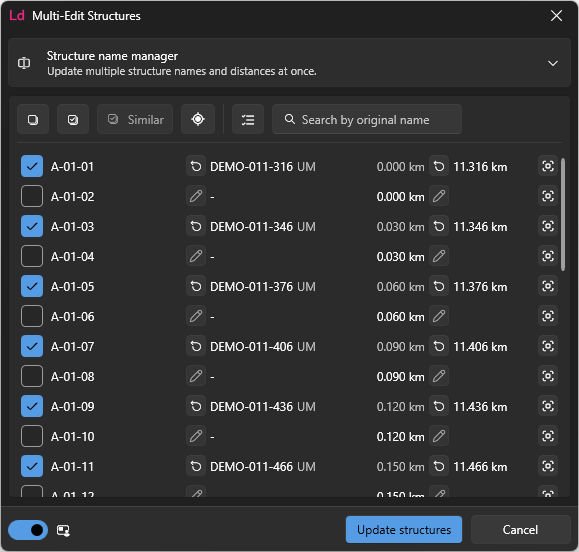
Step 6: Repeat steps 4 & 5 for multiple sets of structures.
You can update distances and names for different sets of structures in the same model.
You can reset values for selected structures using the 'reset' button next to the respective name or distance for all the selected structures.
Step 7: Click 'Update Structures'
This will rebuild the affected structures (structures with new names or distances).